
Form Expert is an advanced form analysis tool that shows historical performance breakdowns for every runner in a race. Analyse form by going, class, course, similar tracks, age, distance, and field size across 7 different participant types.
Accessing Form Expert
- Open any racecard from the Racecards menu or the hamburger menu
- In the Runners section, click the Form Expert button to switch views
- Click Ratings to return to the standard racecard view
Participant Types
Use the participant dropdown to switch between 7 different analysis types:
- Horse: The horse's own historical form
- Trainer: How the trainer performs under various conditions
- Jockey: Jockey performance breakdown
- Sire: How the sire's offspring perform
- Dam: How the dam's offspring perform
- Damsire: Performance of the dam's sire's descendants
- Owner: Owner's runners performance breakdown
Control Bar Filters
The control bar at the top provides several filtering options:
- Race Type: Filter by All Types, Flat (Turf + A/W), Jumps (Chase + Hurdle + NHF), or specific surfaces
- Handicap: Filter by All, Handicap only, or Non-Handicap only
- Show Mode:
- Win - Shows win statistics only
- Win & Place - Shows win and placed (1st-4th) statistics
- PRB - Percentage of Rivals Beaten (average % of the field beaten)
- Period: Limit data to recent years (All, 5yr, 2yr, 1yr)
Match Race Button
The Match Race button is a powerful feature that:
- Sets all column filters to match the current race conditions
- Automatically adjusts Going, Class, Age, Distance, Field Size, Race Type and Handicap to match
- Stays active when navigating between races - ideal for quickly scanning a meeting
- When active, each new race automatically applies its own conditions
- Use the Reset button to turn off Match Race and clear all filters
Column Header Filters
Each category column (Going, Class, Age, Distance, Field) has from/to dropdown filters in the header:
- Going: Filter by ground firmness from Hard (firmest) to Heavy (softest). Order: Hard → Firm → Good To Firm → Good → Good To Soft → Soft → Heavy → Standard → Slow. A Surface dropdown below the going filters lets you narrow down to Turf, All A/W, Polytrack, or Tapeta specifically.
- Class: Filter by race class from 1 (highest, e.g., Group 1) to 7 (lowest)
- Course: Shows stats at the current course only (no filter needed)
- Similar Tracks: Shows stats on courses and trips like today's: the same track type (Very Sharp to Stiff), the same gradient (level, undulating, uphill, downhill, down then uphill, up then downhill) and the same direction (left-handed, right-handed or straight), in today's code (Flat or jumps), from Proform's course maps. The header shows today's match in short, for example Sharp / Up-down / RH; hover it for the full wording. Like Course it needs no filter, because it is always matched to today's race, and the Race Type, Handicap and Period filters still apply. Set the mode to PRB to see how much of the field each runner beat on similar tracks, and click the numbers (horse view) to see those runs. A race the maps cannot place shows Not mapped and dashes.
- Age: Filter by horse age at race time — 2yo through 15yo individually, or 16yo+
- Distance: Filter by trip range. Flat uses 5f-6f, 6f-7f, 7f-1m, etc. Jumps uses 2m-2m2f, 2m2f-2m4f, etc.
- Field: Filter by field size - Small (1-7), Medium (8-11), Large (12-15), V.Large (16+)
When you change a column filter, a green Apply button appears next to that column - click it or the main Apply button to refresh the data.
Table Columns
- # - Card number (saddle cloth number)
- Silks - Jockey silks image
- Horse/Trainer/etc. - Participant name (click to view profile)
- Eve / Bkf / Morn - Best available price for the runner. The column heading updates dynamically as prices arrive through the day: Evening → Breakfast → Morning. Shows fractional odds by default (or decimal if set in preferences). Sortable.
- H - Horse's current RaceMetrics Rating (gold highlight = highest rated)
- Score - Form score based on filtered historical data (gold = highest)
- R - Total runs matching filters (hidden on mobile)
- W - Wins (or places/PRB depending on mode) (hidden on mobile)
- % - Strike rate percentage
Sorting
Click any sortable column header to sort the table:
- Default sort is by Score (descending)
- Sort order is remembered when navigating between races
- Sortable columns: #, Price, H, Score, and each category's R/W/% columns
Cell Colour Coding
Percentage cells are colour-coded based on strike rate:
- Green (33%+) - Excellent strike rate
- Amber (15-32%) - Moderate strike rate
- Red (<15%) - Low strike rate
- Grey - No data available
Filter Persistence
Form Expert remembers your preferences as you navigate:
- View preference: If you're on Form Expert and navigate to another race, you'll stay on Form Expert
- Filters carry forward: Your current filters apply to the next race you view
- Match Race persistence: When Match Race is active, it automatically applies each new race's conditions
- Sort order: Your column sort preference is remembered across races
- Reset button: Clears all filters and returns to defaults
Percentage Tooltips
Hover over any percentage cell to see the other two metrics without switching modes. For example, when viewing Win mode, hovering shows Win & Place % and PRB for that cell.
Legend
A colour legend appears below the table showing the percentage thresholds for green/amber/red cells.
Actual Going (Proform Premium)
Proform Premium subscribers can opt to use Actual Going instead of official/forecast going for historical form analysis in Form Expert.
- What's the difference? Official going is the forecast/declared going before or during a race. Actual going is recorded post-race and may differ.
- How to enable: Go to Account → Preferences → Proform Premium Features and turn on "Use Actual Going in Form Expert".
- When active: A gold Using Actual Going badge appears in the Form Expert control bar.
- Note: If actual going is not recorded for a historical race, it falls back to official going.
Race Conditions
Below the legend, the current race conditions are displayed showing Going, Class, Age, Distance, Field Size, Race Type and whether it's a Handicap - useful for reference when setting filters.
Mobile View
On smaller screens:
- R (runs) and W (wins) columns are hidden, showing only % for each category
- Table scrolls horizontally if needed
- Control buttons are sized appropriately for touch
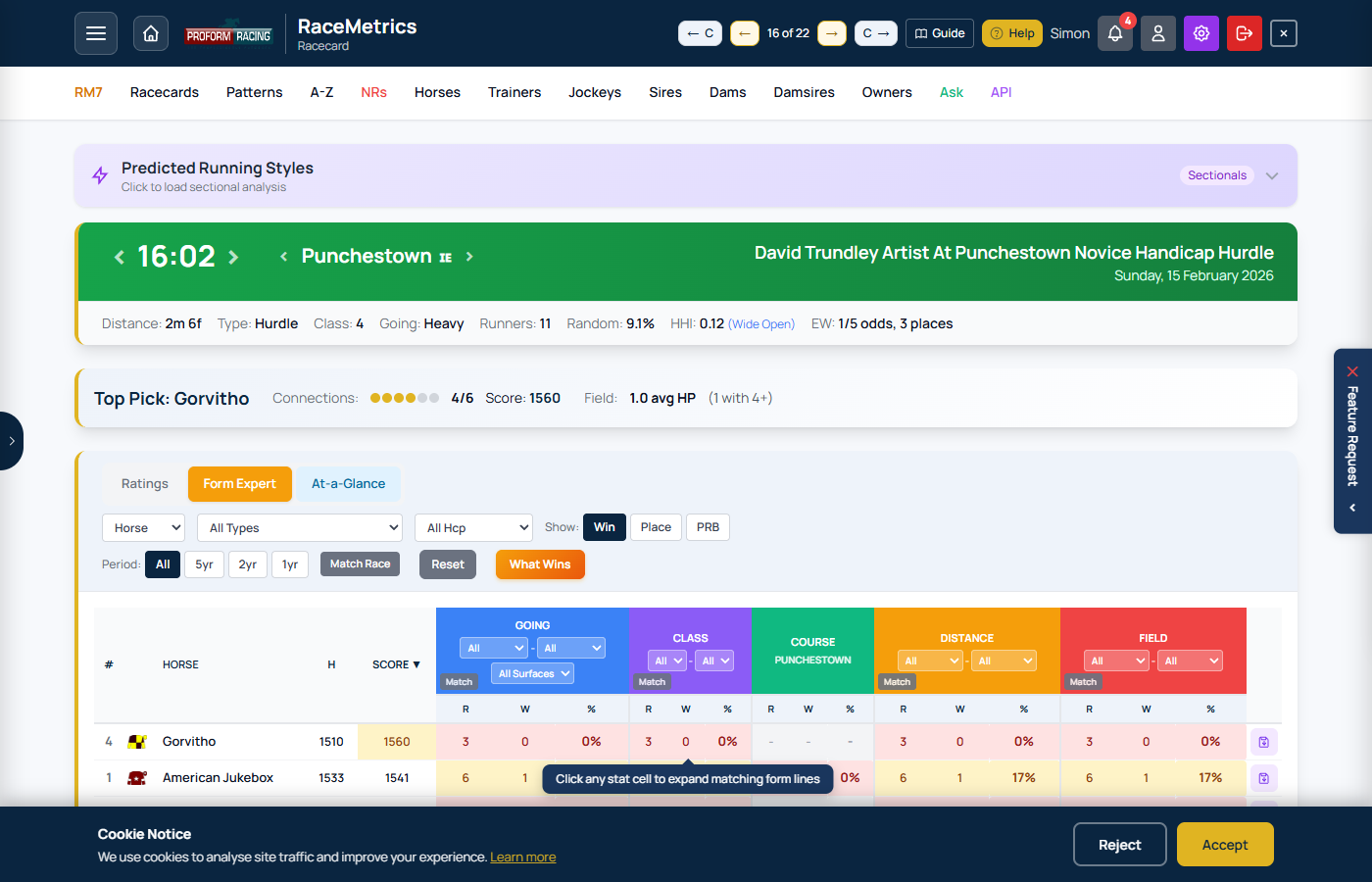
Form Expert view with control bar filters, participant type selector, and Going/Class/Course/Age/Distance/Field breakdowns for each runner